WPForms forms are protected by one switch in SilentShield. This guide shows the steps with screenshots. It was tested on 7 October 2026 with WPForms Lite 2.0.2.2, SilentShield 2.15.14 and WordPress 7.1.2; we did not test WPForms Pro. The captcha method and the other protection layers are covered in the general setup guide. The test used the plugin’s own captcha layers without an API key; the compatibility list for the SilentShield API is in the WordPress guide.
Step 1: Build your WPForms form
Create the form under WPForms → Add New and place it on a page. We used the shortcode [wpforms id="…"] with the form’s ID. Until you switch a form plugin on, SilentShield shows a notice on every admin page saying it is active but not protecting any form yet.
Step 2: Switch on WPForms in SilentShield
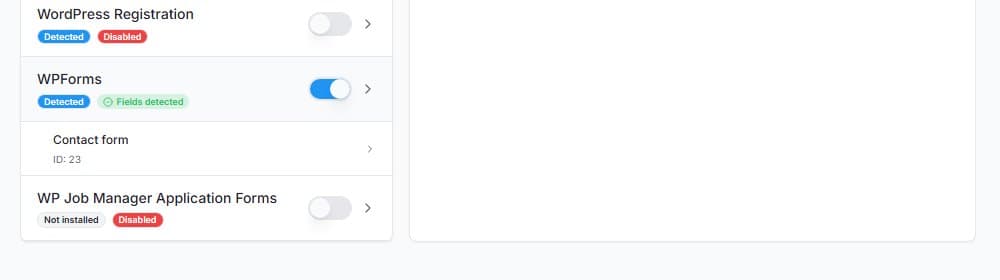
Open SilentShield → Forms and switch on WPForms. The switch saves immediately, there is no Save button to press. The badge changes from “Disabled” to “Fields detected”, and your WPForms form is listed below the entry with its ID.
Step 3: Check the form as a visitor
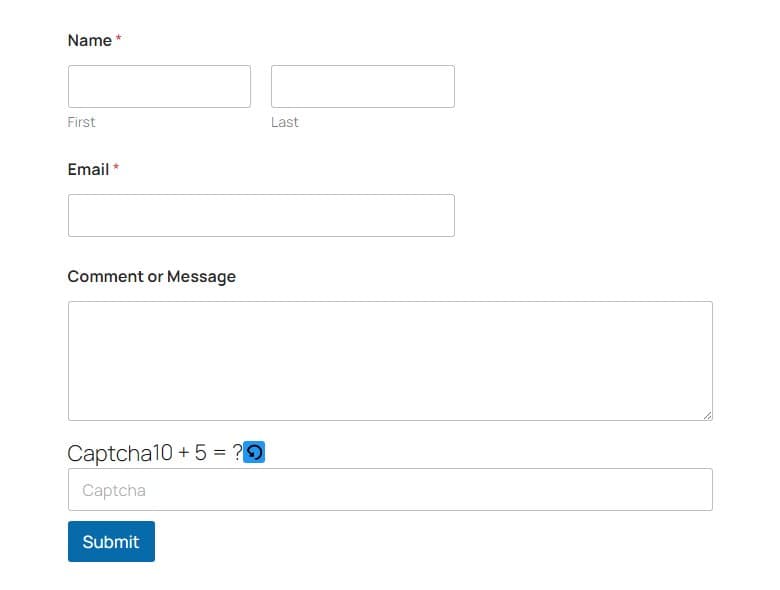
Open the page in a private browser window. Administrators and logged-in users skip all checks by default, so a test while you are logged in shows nothing. With the math captcha chosen, the question appears above the Submit button, with a reload button next to it.
Step 4: Test a wrong answer
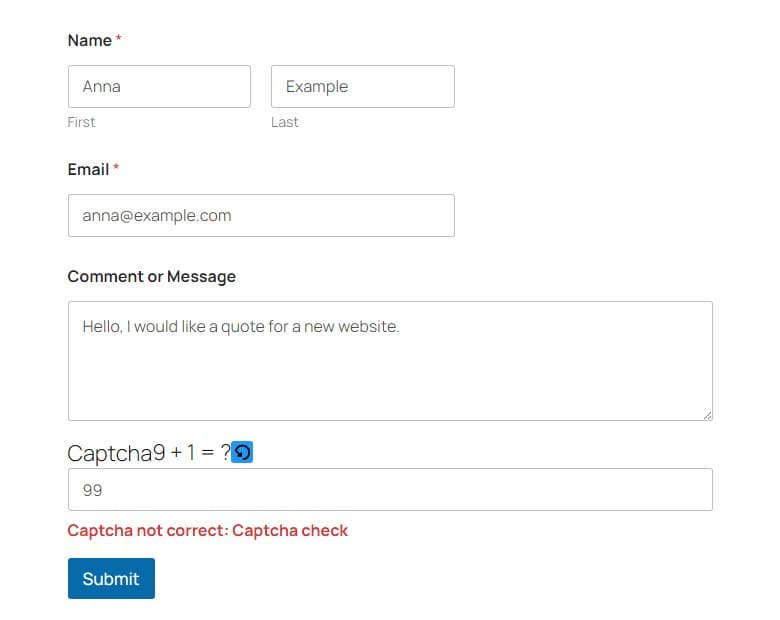
Fill in the form, enter a wrong answer and click Submit. The form is not sent, and a red message appears under the captcha field: “Captcha not correct: Captcha check”.
Step 5: Test a correct answer

Answer correctly and click Submit. WPForms shows the confirmation message you set in the form’s confirmation settings; in our test it was “Thanks for contacting us! We will be in touch with you shortly.”
What to know
- The captcha method, the timer, the gibberish detection and the rules apply to WPForms forms like to every other form. See the general setup guide.
- If a caching or optimisation plugin delays JavaScript until the first interaction, exclude SilentShield’s scripts from that; the WordPress guide lists the file names.