WooCommerce has two kinds of checkout, and SilentShield has one switch for each. This guide shows both with screenshots. It was tested on 7 October 2026 with WooCommerce 11.1.2, SilentShield 2.15.14 and WordPress 7.1.2, with cash on delivery as the payment method. Other payment gateways were not part of this test. The captcha method and the other protection layers are covered in the general setup guide. The test used the plugin’s own captcha layers without an API key; the compatibility list for the SilentShield API is in the WordPress guide.
Step 1: Find out which checkout you use
A page that contains the shortcode [woocommerce_checkout] is the classic checkout. The checkout page that WooCommerce 11.1.2 created for our new store uses the Checkout block instead. Open your checkout page in the editor to see which one you have, or use both switches below if you are not sure.
Step 2: Switch on the checkout in SilentShield
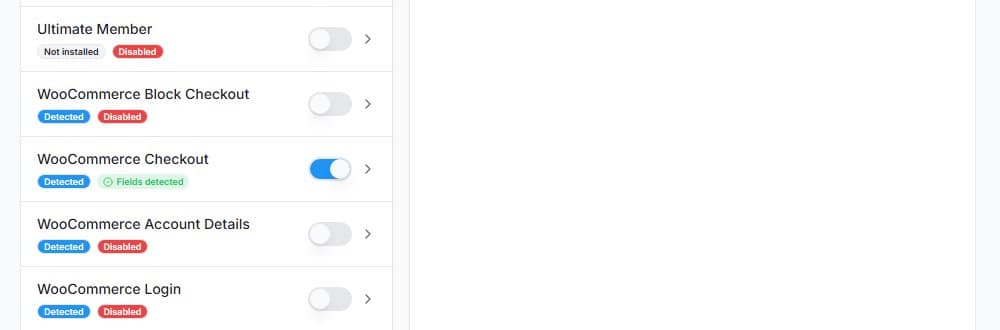
Open SilentShield → Forms. WooCommerce appears as several entries; for the checkout there are WooCommerce Checkout (classic) and WooCommerce Block Checkout. Login, registration and account details have their own switches in the same list. The switch saves immediately, there is no Save button to press.
Step 3: Classic checkout: where the captcha appears
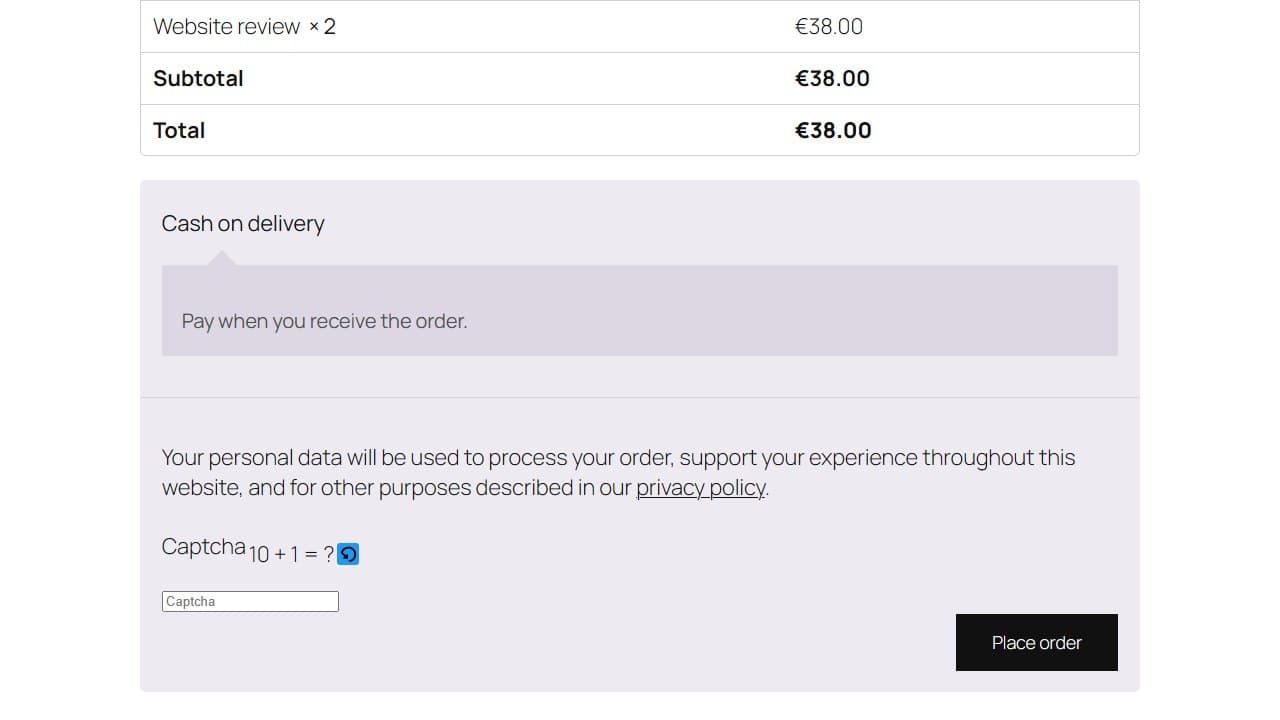
Add a product to the cart as a visitor in a private browser window and open the checkout. Administrators and logged-in users skip all checks by default, so a test while you are logged in shows nothing. In the classic checkout the captcha sits in the order review, above the Place order button.
Step 4: Classic checkout: test a wrong answer
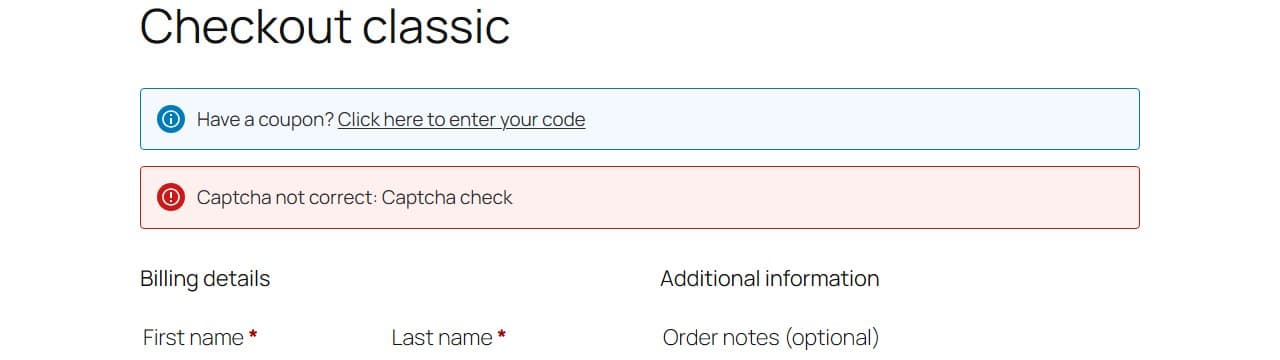
Fill in the billing details, enter a wrong answer and click Place order. The order is not placed, and a red notice appears at the top of the form: “Captcha not correct: Captcha check”. With the correct answer, the order went through in our test and WooCommerce showed the order received page.
Step 5: Block checkout: where the captcha appears
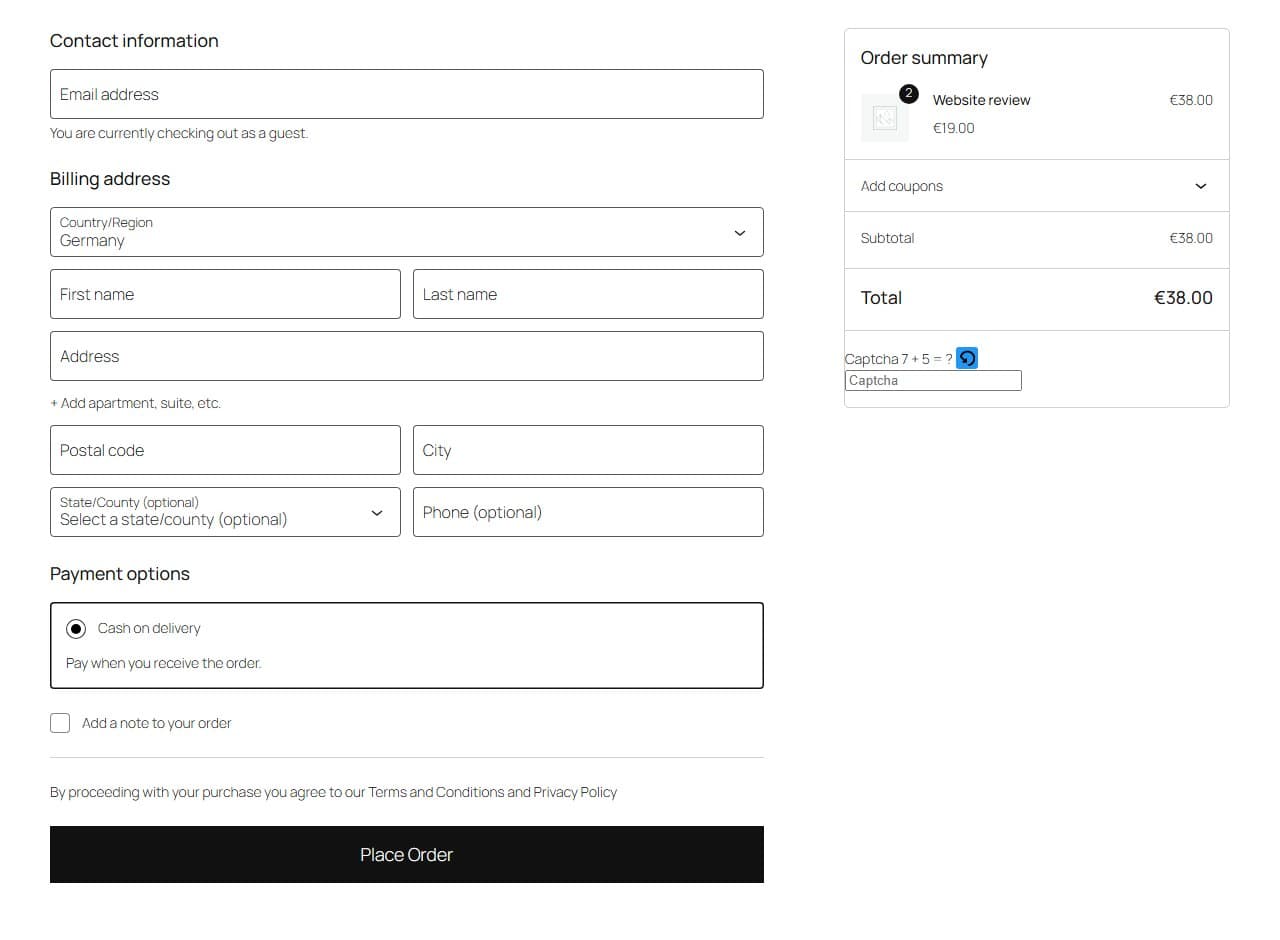
In the block checkout the captcha sits in the order summary on the right, below the total, not above the Place Order button.
Step 6: Block checkout: test a wrong answer
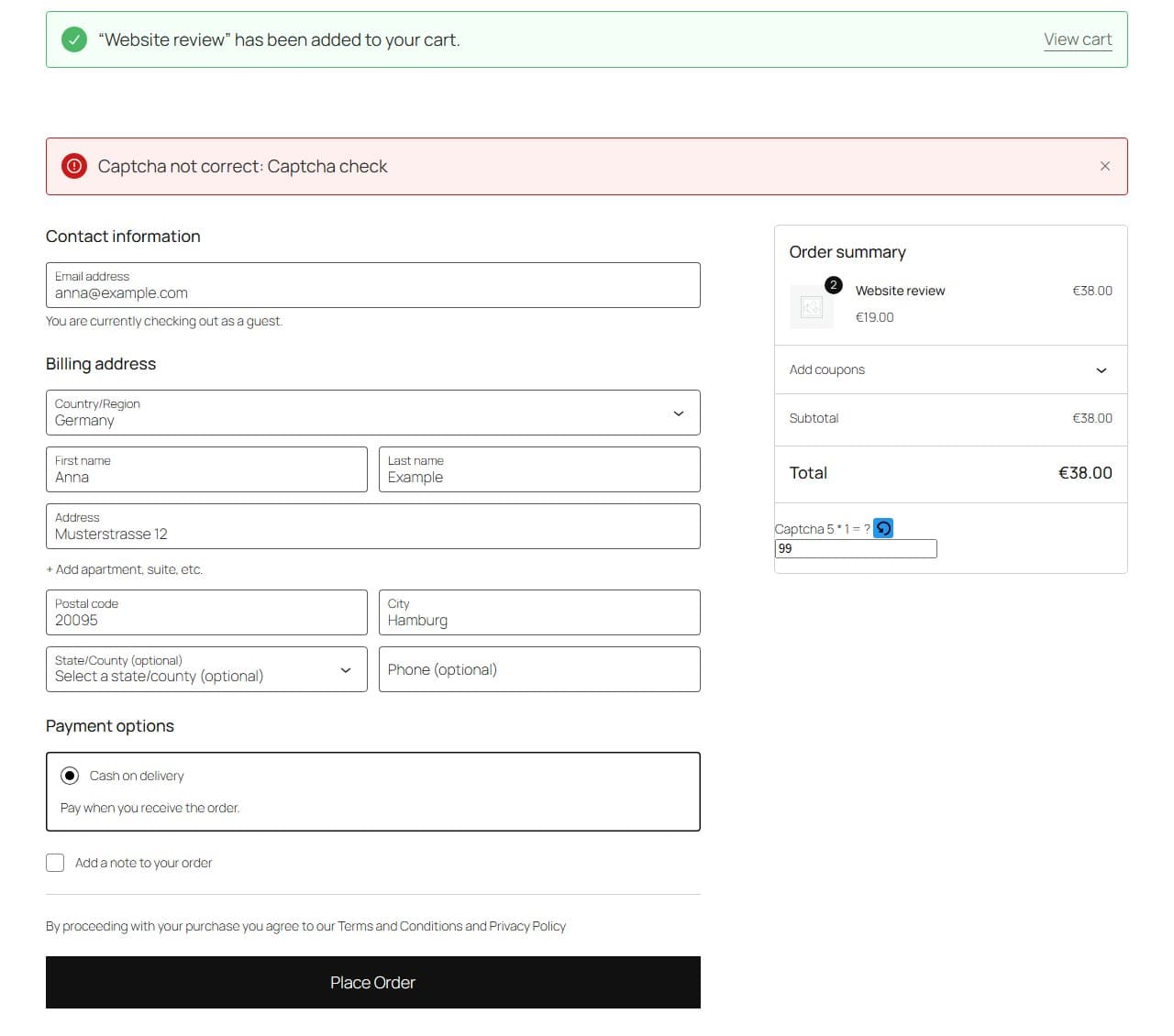
Enter a wrong answer and click Place Order. A red banner appears above the form: “Captcha not correct: Captcha check”. Behind it, the checkout request is answered with an error (HTTP 400, code f12_cf7_captcha_spam_detected), and no order is created. With the correct answer, the order went through in our test.
What to know
- If your store is still in WooCommerce’s “Coming soon” mode, a visitor window shows the coming-soon page instead of the checkout. We saw this on the block checkout page. Switch the store live before you test.
- The captcha method, the timer, the gibberish detection and the rules apply to the checkout like to every other form. See the general setup guide.
- If a caching or optimisation plugin delays JavaScript until the first interaction, exclude SilentShield’s scripts from that; the WordPress guide lists the file names.