This guide takes a fresh WordPress site with Contact Form 7 from “no protection” to a layered setup. Everything was tested on 7 October 2026 with SilentShield 2.15.14, Contact Form 7 6.2 and WordPress 7.1.2. The layers described here run on your own server; the optional SilentShield API is covered in the WordPress guide.
A fresh install protects nothing yet
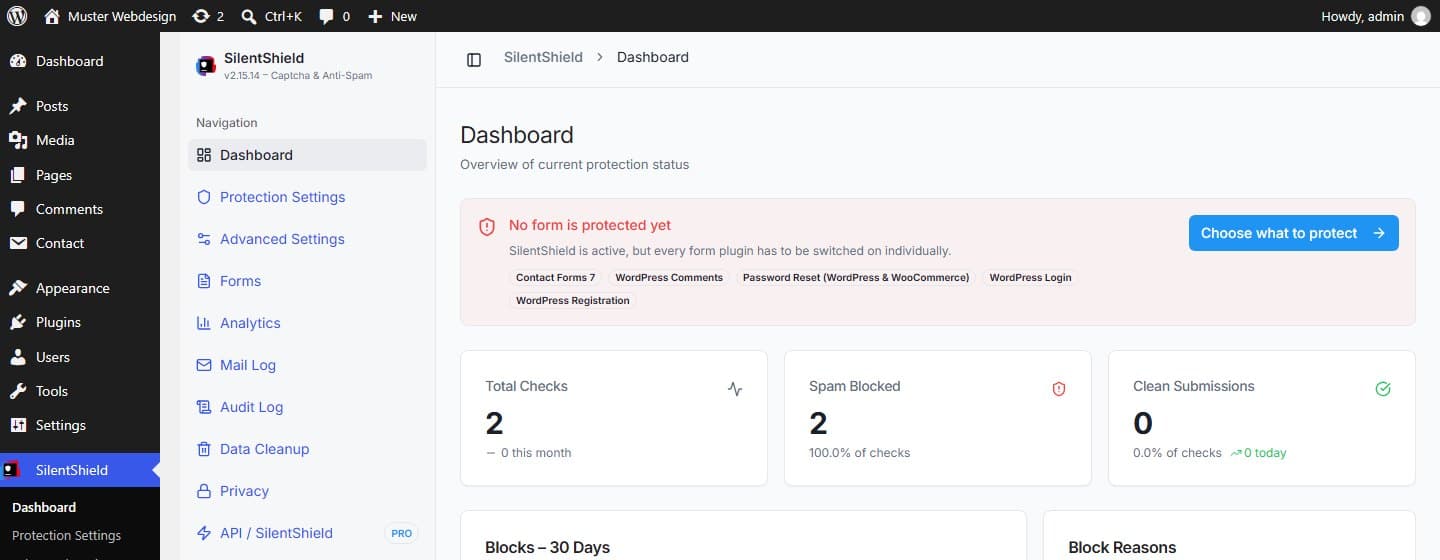
After you activate the plugin, it is running, but no form plugin is switched on. The Dashboard says so: “No form is protected yet”, followed by the form plugins it found on your site. Until you switch a form plugin on, its forms show no captcha field and nothing is checked.
All settings below live in the SilentShield menu of the WordPress admin.
Step 1: Choose a captcha method
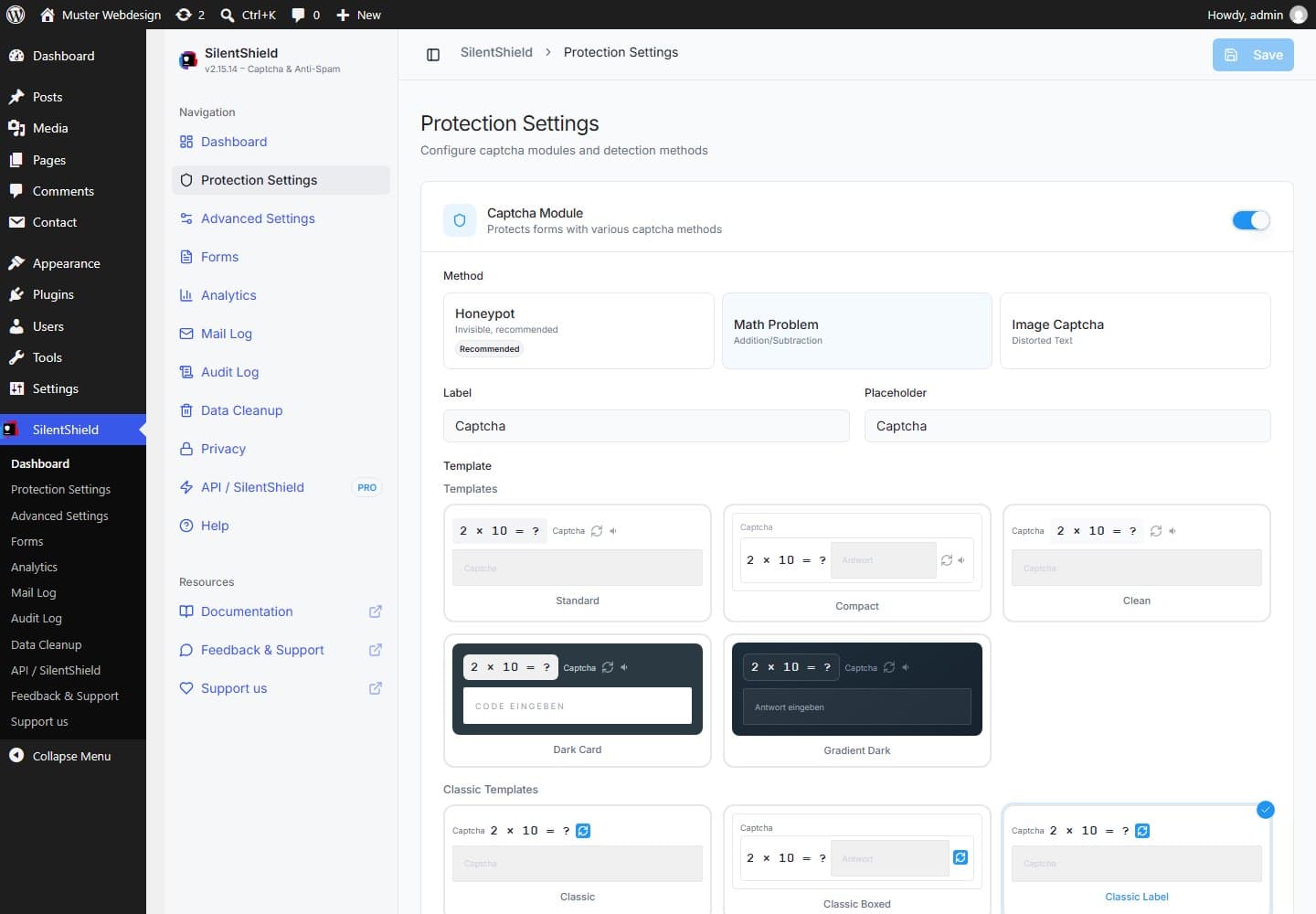
Open SilentShield → Protection Settings. Three methods are available:
- Honeypot (default, invisible). A trap field sits off-screen; visitors never see it, bots that fill in every field they find do. A honeypot is not a challenge: a bot that reads the page and leaves the trap alone gets through.
- Math problem. The visitor solves a small arithmetic problem (addition, subtraction or multiplication). It is rendered as text, so a bot that drives a real browser can read it.
- Image captcha. Distorted characters the visitor types in. It needs the PHP GD library on the server and is the most effort for your visitors.
Start with the honeypot if conversion matters most, and move up to the math problem or the image captcha when spam still arrives. Pick a template, adjust the label if you like, and click Save.
Step 2: Switch on your forms
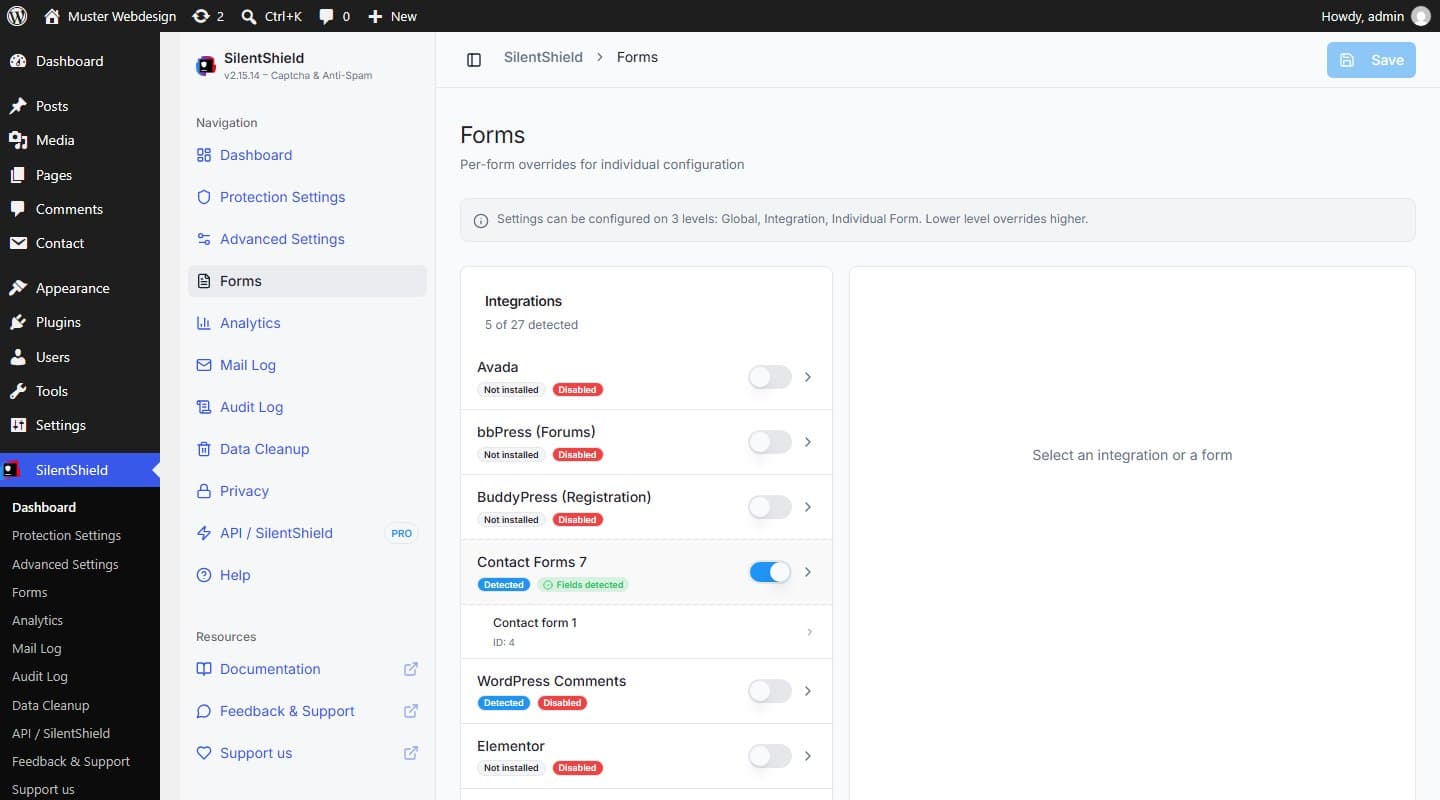
Open SilentShield → Forms. Each form plugin has a switch; the badge next to it says whether the plugin was detected on your site. Switch on Contact Form 7 and the badge changes from “Disabled” to “Fields detected”. This switch saves immediately, there is no Save button to press.
Click a single form under the integration if one form needs its own settings. Settings apply on three levels (global, integration, individual form) and the lower level overrides the higher one.
Step-by-step guides for individual form plugins: Avada Forms, Elementor Forms, WPForms and the WooCommerce checkout.
Step 3: Add the detection layers
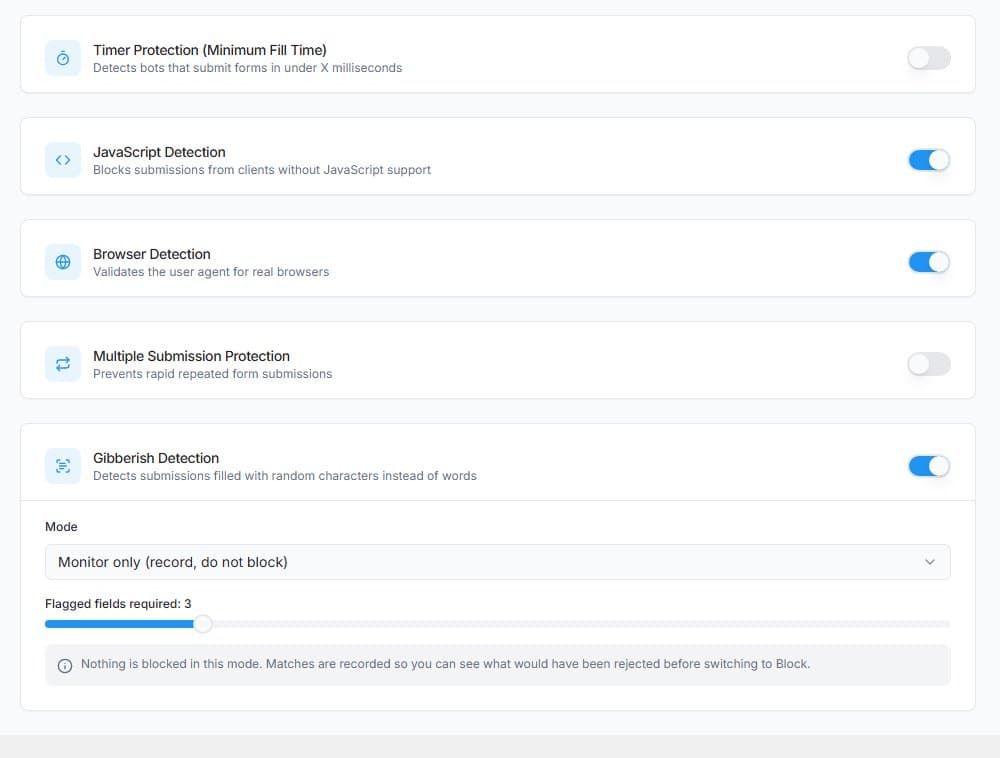
Further down on Protection Settings, every layer has its own switch. This is the state on a fresh install:
- JavaScript detection (on). Blocks submissions from clients that ran no JavaScript, for example a script that posts straight to your form address.
- Browser detection (on). Checks that the request carries a valid user agent.
- Timer protection (off). Rejects a submission that arrives faster than a minimum time after the page loaded; the default minimum is 500 milliseconds.
- Multiple submission protection (off). Stops the same captcha session from being submitted more than once.
- Gibberish detection (on, “Monitor only”). Flags text made of random characters, such as “dQgJlwEhfxaLZSKYLy”. In monitor mode it records what it would have rejected and blocks nothing. Watch the results for a while, then switch the mode to “Block”.
A submission is rejected as soon as any active layer flags it.
Step 4: Rate limit and content rules for stubborn spam
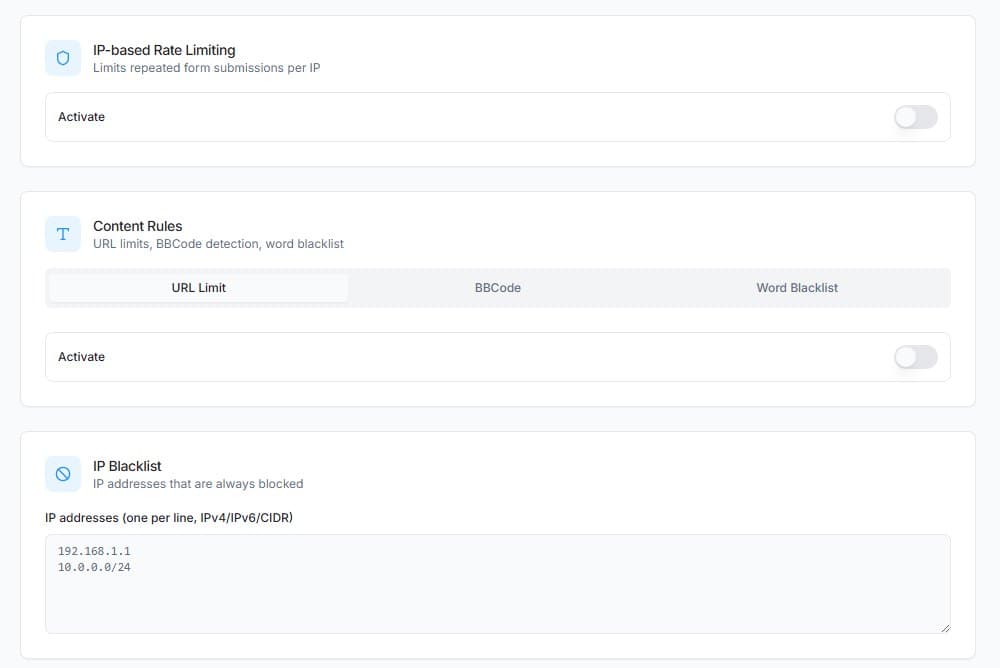
Open SilentShield → Advanced Settings. All of these are off by default:
- IP-based rate limiting. After 3 failed attempts within 5 minutes an address is blocked for 1 hour (the defaults, all adjustable). Addresses are stored as salted hashes.
- Content rules. A limit on the number of links in a message, a block on BBCode links (
[url=…]) and a word blacklist. The blacklist is WordPress’s own list under “Settings → Discussion” (“Disallowed Comment Keys”), so editing it in either place has the same effect. - IP blacklist. Addresses you always want blocked, one per line.
Step 5: Test as a visitor, not as admin
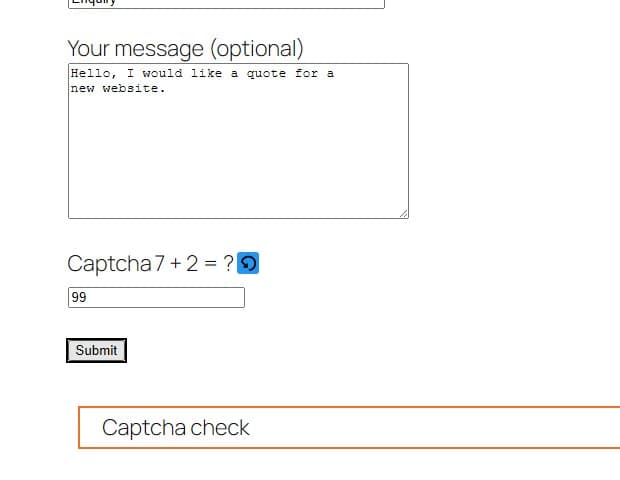
Administrators and logged-in users skip all checks by default (the whitelist on the same page). A test while you are logged in therefore proves nothing. Open the form in a private browser window instead:
- Submit with a wrong captcha answer. The submission must be blocked; Contact Form 7 shows the reason in its response box, here “Captcha check”.
- Reload the form and submit with the correct answer. It must go through.
Which setting stops which kind of spam
- Scripts that post directly, without a browser: JavaScript detection and browser detection.
- Bots that fill in every field: the honeypot.
- Scripts that fill and send a form within milliseconds: timer protection.
- Filler text of random characters: gibberish detection.
- Link spam: URL limit, BBCode block and word blacklist.
- The same address trying again and again: IP-based rate limiting.
Limits
- No setting stops spam that a person types by hand.
- Bots that drive a real browser can pass the client-side checks. The content rules and gibberish detection look at what was typed instead; behaviour analysis is the layer for this case.
- Without JavaScript in the browser, a submission to a protected form is rejected.